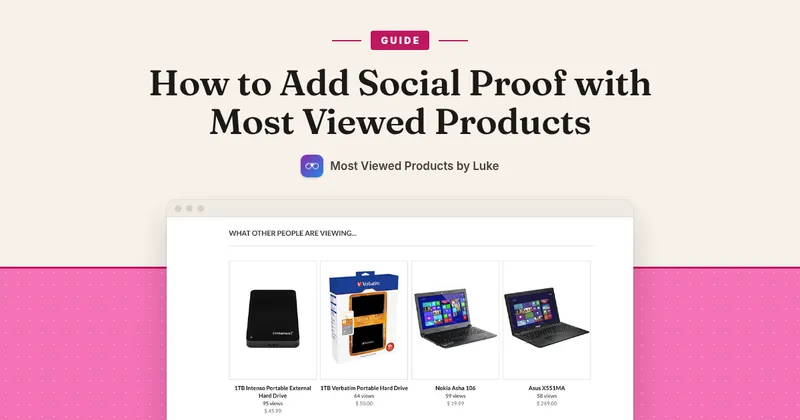
Most Viewed Products is best known for the row of popular products on a homepage. It also has a smaller tool that gets less attention: the View Count block, which prints a short “N views” line on a product page. This guide shows how to add it, how to reword it, and how to check it before Black Friday traffic arrives.
Know the limits first
- The number is a count of views of that product page. It is not a sales number, so avoid describing it as “bestseller” or “people bought this” in your own wording.
- It needs the Most Viewed Products Core app embed turned on. Without it, no views are recorded and nothing shows on the page.
- The block only works on a product template. On other pages it shows nothing.
- A new or quiet product may have a small number. Decide whether a low number helps that product before you show it.
Part 1: How it is configured
Step 1: Check the app embed
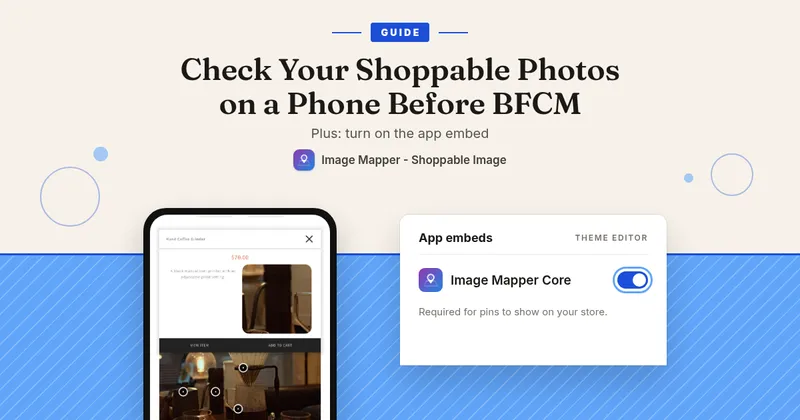
In your theme editor, open App embeds and make sure Most Viewed Products Core is on, then save. The embed is what records a view when someone opens a product page.
Step 2: Add the View Count block
There are two ways, and the result is the same:
- From the app: open Helps, find “How to display view count on Product page?”, and click Add View Count Block to Product Page. The theme editor opens with the block already added to your product template.
- From the theme editor: open a product template, click Add block (or Add section), choose the Apps tab and pick View Count.
Step 3: Place it and save
Drag the block to where it reads best. Under the product title or near the price are common spots. Click Save. The block has no settings of its own, so the wording is the next step.
Step 4: Reword it (optional)
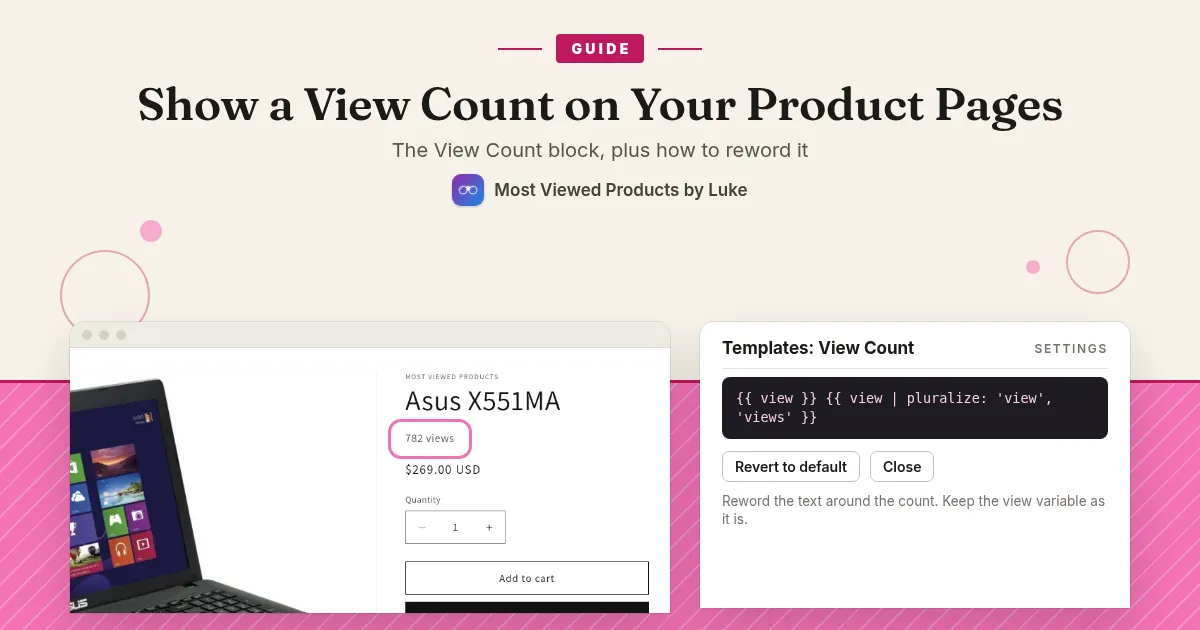
In the app, go to Settings and find the Templates section. Click Edit next to View Count. The default is:
{{ view }} {{ view | pluralize: 'view', 'views' }}
That prints “12 views” for many views and “1 view” for exactly one. If you change the wording:
- Keep the
{{ view }}variable, because it is the number itself. - Use the
pluralizefilter if the word after the number has to change for one view. For example,{{ view }} {{ view | pluralize: 'person has viewed this', 'people have viewed this' }}reads “1 person has viewed this” and “12 people have viewed this”. - Keep it short and factual. Plain text works well on a small screen.
- If something goes wrong, click Revert to default to return to “N views”.
Click Save, then check both a product with one view and a product with many.
Part 2: What shoppers see
- A small line such as “128 views” where you placed the block on each product page.
- Nothing on collection pages, the homepage or the cart, because the block only works for a product.
- A number that goes up as shoppers open the product. The app records a view when a shopper opens the product page, and it ignores repeat views of the same product in the same browser session for 30 minutes. The app also filters bot traffic when it records views, so views from bots and automated tools should not be counted.
Test it before you leave it
- Open a product page in a private window. Is the line there and does it read well on your phone?
- Do not test by refreshing the page. Repeat visits to the same product in one session within 30 minutes do not add views, so the number will not move and it can look broken when it is not.
- Open a product with exactly one view and check it reads “1 view” (or your own wording for one).
- Open a collection page and the homepage and check no empty gap appears where the block would be.
- If you edited the template and nothing changed, reload in a private window, because browsers keep older files for a while.
The View Count block pairs with the popular products row. The row helps shoppers find what others look at, and the count tells them how many have viewed this product. If you want to use the row too, see our guide on adding a Most Viewed Products row to your homepage.
A few tips
- Keep the wording honest. “Views” is accurate, “selling fast” is not what the number means.
- Place it where it does not push your Add to cart button below the first screen on a phone.
- Check one product page on your phone after any theme update, since a theme change can move blocks.
If you would like help adding and checking app blocks in your theme before the sale, book Ginner Tech support and we will go through it with you. You can also see what the support plan covers.
Last checked: November 2026
Most Viewed Products is $4.99/month with a 7-day free trial: Most Viewed Products on the Shopify App Store