You build a store tour, test it on your homepage, and it works. Then Black Friday ad traffic arrives on links that end in ?utm_source=... and the tour never shows. The cause is usually one setting: the Target URL. This guide shows how AHA – Onboarding Tours matches URLs, and how the * wildcard keeps tagged links working.
Why the tour disappears on tagged links
Ads, emails and social posts often add tracking parameters to your links, such as ?utm_source=newsletter&utm_campaign=bfcm. The page is the same, but the full address is longer.
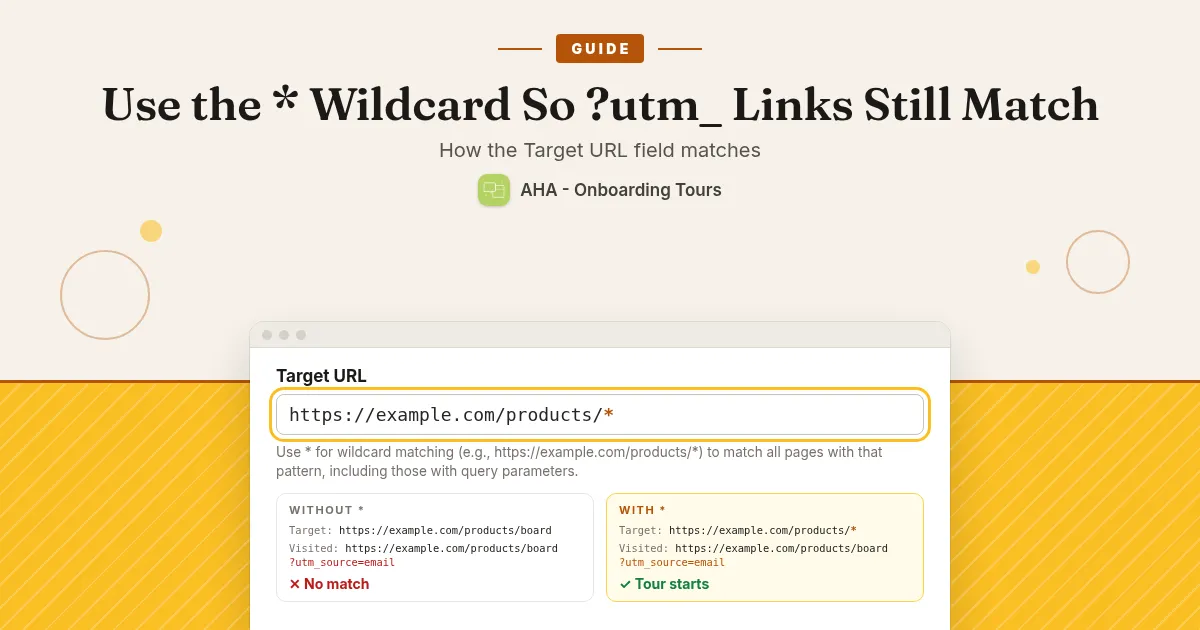
AHA treats those two kinds of Target URL differently:
- An exact URL, such as
https://yourstore.com/collections/gifts, matches only that address without any query parameters. If the visitor arrives with?utm_...or?variant=...on the end, the tour does not run. - A URL with
*, such ashttps://yourstore.com/collections/*, matches every page with that pattern, including ones that arrive with query parameters.
The app’s own help text on the Target URL field says the same thing. So if your tour shows on a direct visit but not from your campaigns, check for a missing * first.
Part 1: How it is configured
Before you start, check that the app embed is on. In the app, open Onboarding and use Enable app embed, then Save in the theme editor. It says “App embed is enabled” once it is on. Tours do not show without it.
Step 1: Open the tour and find Target URL
In the app, open Dashboard and click the title of the tour. In the Settings card, find Target URL. The help text under it explains exact URLs and the * wildcard.
Step 2: Add the wildcard
Change the URL so it ends in * for the group of pages you want. The help text uses this example:
https://example.com/products/*– every product page, with or without query parameters.
Collections work the same way, for example https://yourstore.com/collections/*. Note what this means: the tour will appear on every page that matches the pattern, not only on the one in your campaign. If that is wider than you want, keep the pattern as specific as your store’s page paths allow, and test a page you did not intend (see the checks below). A bare /collections page (with nothing after it) is not matched by https://yourstore.com/collections/*, so test that page separately if you want the tour there.
A trailing / is removed when you save, so you do not need to worry about it.
Step 3: Save once
Click Save in the page header, then go back to the Dashboard and open the tour again to confirm the new Target URL is stored. If this is a brand new tour, save it only once. Each extra save on a new tour can create another copy.
If you need the element picker
The Look up element link opens your store using the Target URL. A URL with * or one that already contains ? produces a broken picker address. While you pick elements, temporarily use a real page address with no ? and no *. Put the wildcard back before your final save. Also remember that View on your store opens the Target URL literally, so with a * it will not open a real page. Open a real page yourself instead.
Part 2: What shoppers see
- A shopper who clicks your ad or email link lands on the page with
?utm_...on the end, and the tour starts the same way it does for a direct visit. - A shopper who types your address and arrives with no parameters gets the same tour.
- Each step points at its element with a small arrow, with Next and Back buttons, and a close icon to leave early.
- With the default trigger (Once per customer and Current session), the tour is shown once per session. If you choose Define days, it is shown once per customer after that many days.
Test it with a tagged link
- Open a private (incognito) window. Your normal browser may remember that you have already seen the tour.
- Open a page that should show the tour, with no parameters. The tour should start.
- Open a new private window and add a test tag to the same page:
?utm_source=test. The tour should start here too. If it does not, check the Target URL for a missing*. - Open a page you do not want the tour on. If the tour shows there, make the Target URL more specific.
- Do the same on your phone, since much ad traffic is mobile.
If you set the trigger to Always show while you test, change it back before you go live. It is meant for debugging and shows the tour on every load.
Quick checklist
- Exact Target URL = no tour when the link has any
?parameters. - Target URL with
*= matches pages with that pattern, with or without parameters. - Test with and without
?utm_source=test, in a private window. - Check the app embed is on and saved in the theme editor.
If you would rather have someone check your tours, URLs and theme for you before the sale, book Ginner Tech support and we will go through it with you. You can also see what the support plan covers.
Last checked: November 2026
AHA – Onboarding Tours is $6 every 30 days with a 7-day free trial: AHA – Onboarding Tours on the Shopify App Store