Some questions come back again and again: where is the size chart, how long does shipping take, where do I start, where are the collections. You probably answer them somewhere on your store already, but shoppers do not always find it. A short guided tour can point at the answer on the page where the question comes up. This guide shows how to build one with AHA – Onboarding Tours, including a version that starts when a shopper clicks a help button.
The app has one plan, with a 7-day free trial. The current price is on its App Store listing. (Inside the app it may appear as Interactive Product Tours.)
Part 1: How to set it up
Step 1: Make sure the app embed is on
On first install, the Onboarding page walks you through it: pick your theme under Where would you like to install it?, click Start setup, click Enable app embed, click Save in the theme editor, then click Finish in the app. The tour will not run on your storefront without the embed.
Step 2: Decide which question and which page
Pick one question and the page where shoppers have it, such as size questions on product pages or shipping questions near the shipping note. Keep one tour for one question.
Step 3: Create the tour
On the Dashboard, click Add Tour.
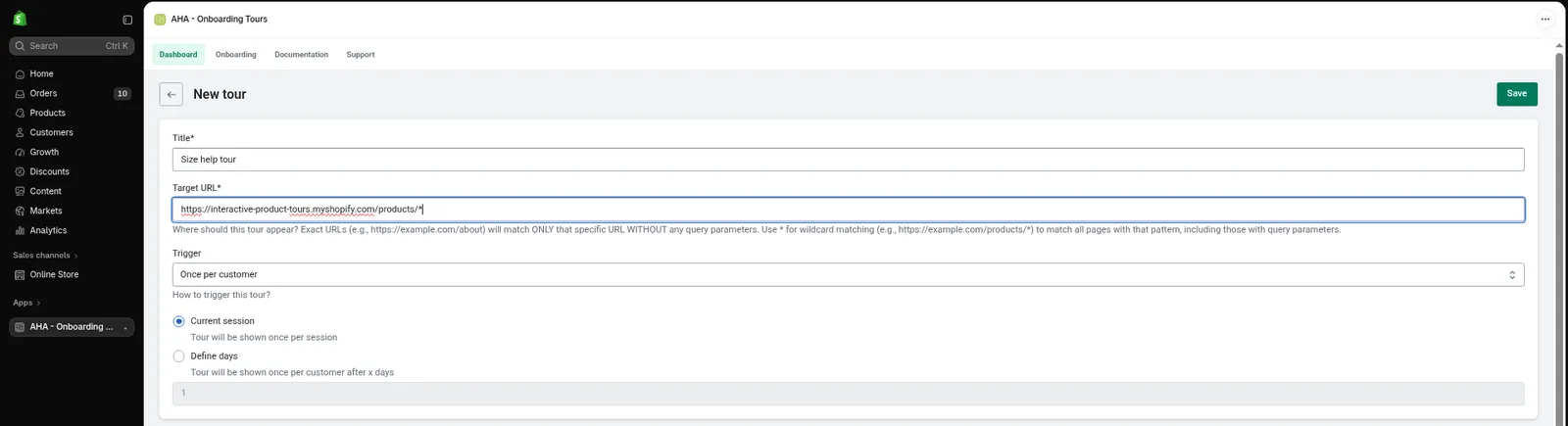
- Title: an internal name, such as “Size chart help”. Shoppers never see it.
- Target URL: the page where the tour runs. For all product pages, use a wildcard such as
https://yourstore.com/products/*. An exact address runs only on that page, and not when the address has a query string.
Step 4: Choose how it starts
Under Trigger, pick one:
- Once per customer starts the tour automatically, then does not repeat it once it has been closed or finished. Choose Current session to hold it back for that visit, or Define days to show it again after a number of days.
- Pick an element starts the tour only when a shopper clicks something you choose, such as a “Need help?” button. Click Look up element, then click the button on your store.
- Always show runs on every page load. Use it only while you test.
- Install manually lets you place the tour yourself. Fill in the Title and Target URL first, then choose it. The app saves the tour and gives you a snippet to paste into your theme, for example in a Custom Liquid section. After you choose Install manually, do not click Save again. Go back to the Dashboard, reopen the tour, and copy the snippet from there.
The button for Pick an element has to exist on your page already, because the app does not add one for you.
Step 5: Add steps that point at the answer
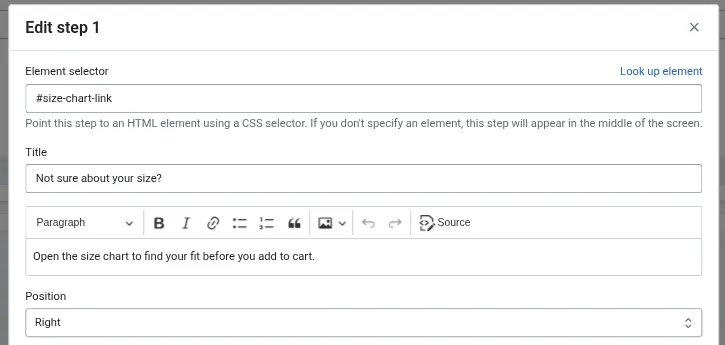
In the Flow section, click + to add a step, then the pencil to edit it.
- Click Look up element and click the size chart link, the shipping note or the menu on your store.
- Write a short Title and content that answers the question in a sentence or two.
- Set Position (there are 12) so the popup does not cover the thing it points at.
- Click Save in the modal.
If your Target URL is a wildcard, temporarily switch it to a real product page while you pick elements, then change it back before you save.
Step 6: Save once and test
Click the page-level Save once and go back to the Dashboard. Open the tour again, then click View on your store. Do not keep saving a new tour, because each extra save can create another copy. Save once, return to the Dashboard and reopen the tour to edit it.
If your Target URL has a *, View on your store opens that literal address. Open a real product page in a private window instead.
Part 2: What shoppers see
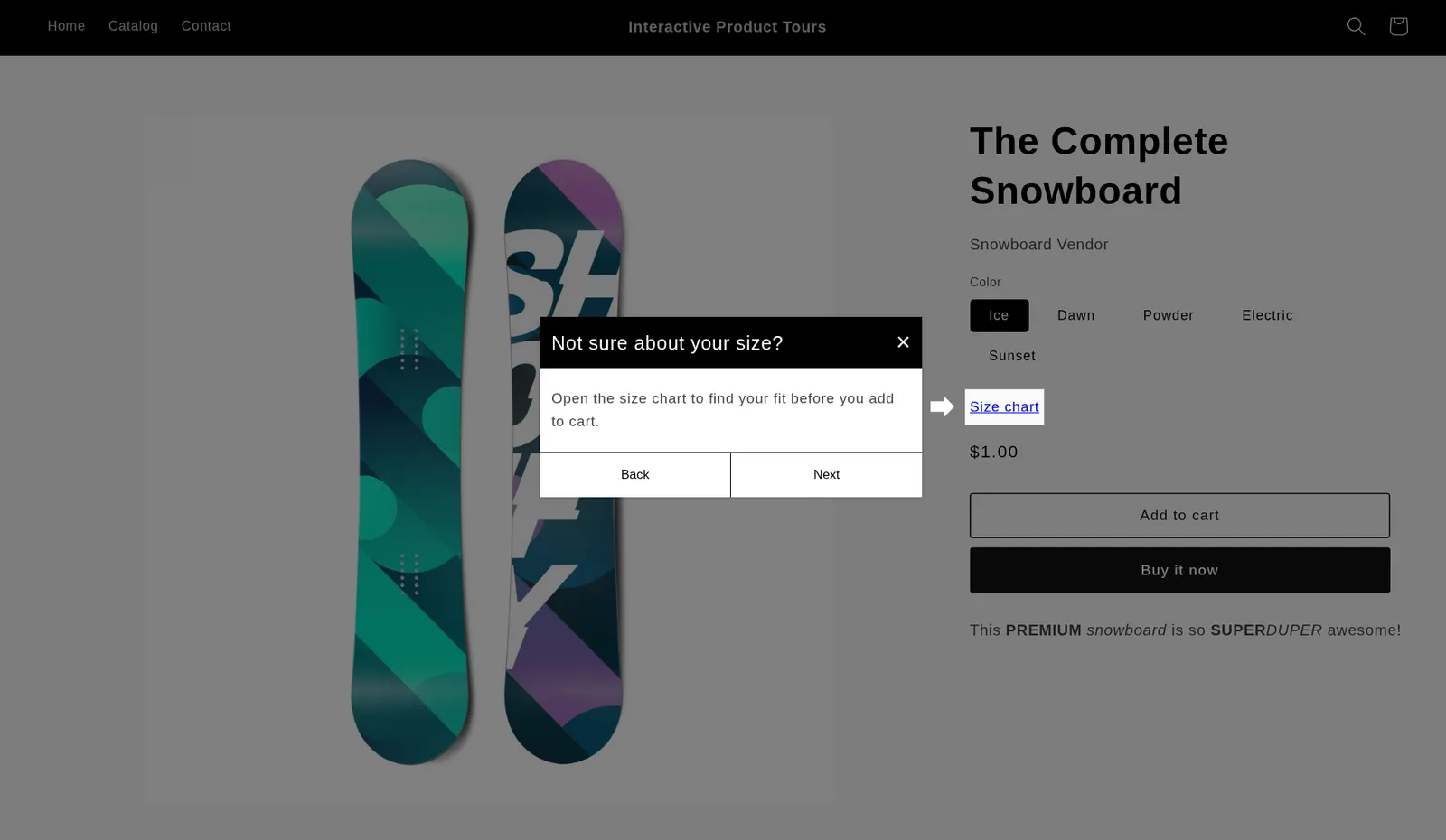
- With Once per customer: the page dims, a popup points at the size chart (or your chosen item) and the page scrolls smoothly to it.
- With Pick an element: nothing happens until the shopper clicks your button. Then the same dimmed page and popup appear.
- With Install manually: the tour appears only on the page where you pasted the snippet, and the snippet’s code decides when it starts.
- With Always show: it runs on every load of the matching page, even after the shopper has finished it.
- Moving through: every step has Next and Back, and a close icon (x) so the shopper can leave at any time. The last Next finishes the tour.
- A step with no element: if a step has no Element selector, its popup appears in the middle of the screen.
- No repeat: a closed or finished tour does not return in that session, or for the number of days you set. This is stored in the shopper’s browser, so AHA cannot target returning visitors.
Last checked: October 2026
AHA – Onboarding Tours: https://apps.shopify.com/interactive-product-tours